How to Enable Quick Accent in Microsoft PowerToys

Do you ever need to type letters with special marks, like accents or symbols, but your keyboard makes it difficult? powertoys-in-windows-11/" class="sal-link" rel="noopener" target="_blank" data-sal-id="13953">Microsoft PowerToys has a handy tool called Quick Accent that makes this easy.
Why use Quick Accent? It helps you type foreign languages or special characters quickly without needing a complex keyboard layout.
What happens when done? You will be able to hold down a letter key and see a menu of accented versions to choose from instantly.
Getting Started
Microsoft PowerToys is a collection of free tools from Microsoft that helps you get more out of your computer. To use the special character feature, you must have the PowerToys app installed on your PC.
Note: Installing software requires admin privileges on your computer.
First, install the PowerToys on Windows.
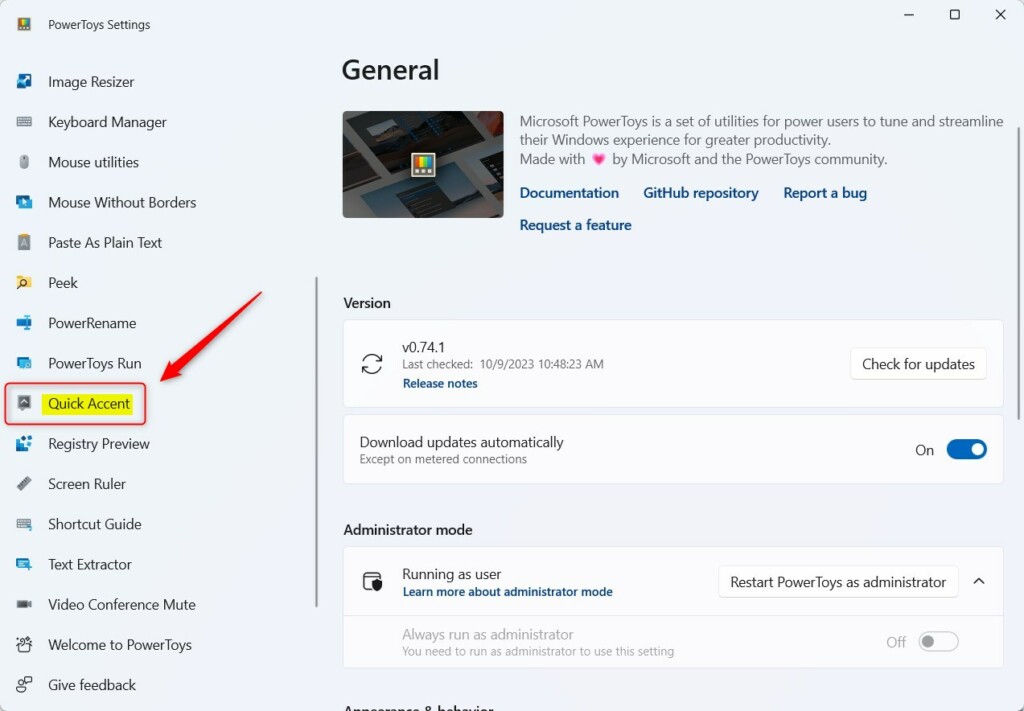
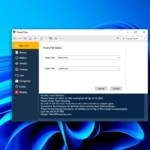
Once the app is installed, open the PowerToys settings menu. Look for the “Quick Accent” option on the left-hand side of the screen.
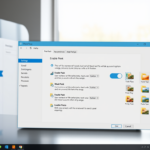
In the main window, find the switch labeled Enable Quick Accent. Click the toggle to switch it to the On position.
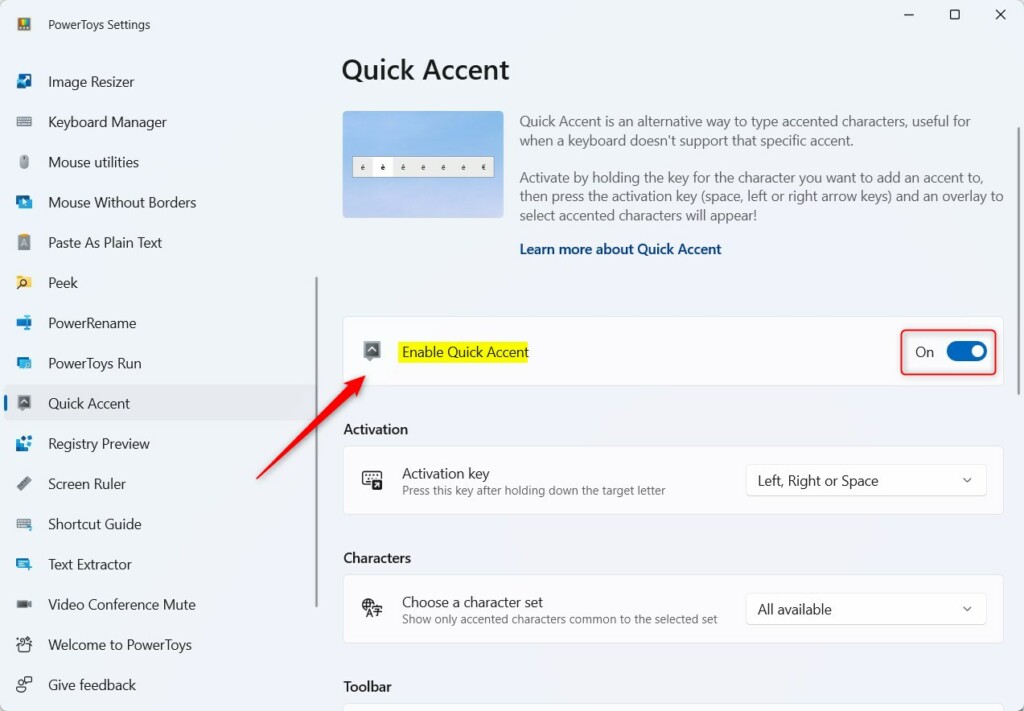
If you ever want to turn it off, simply toggle that same switch back to the Off position.
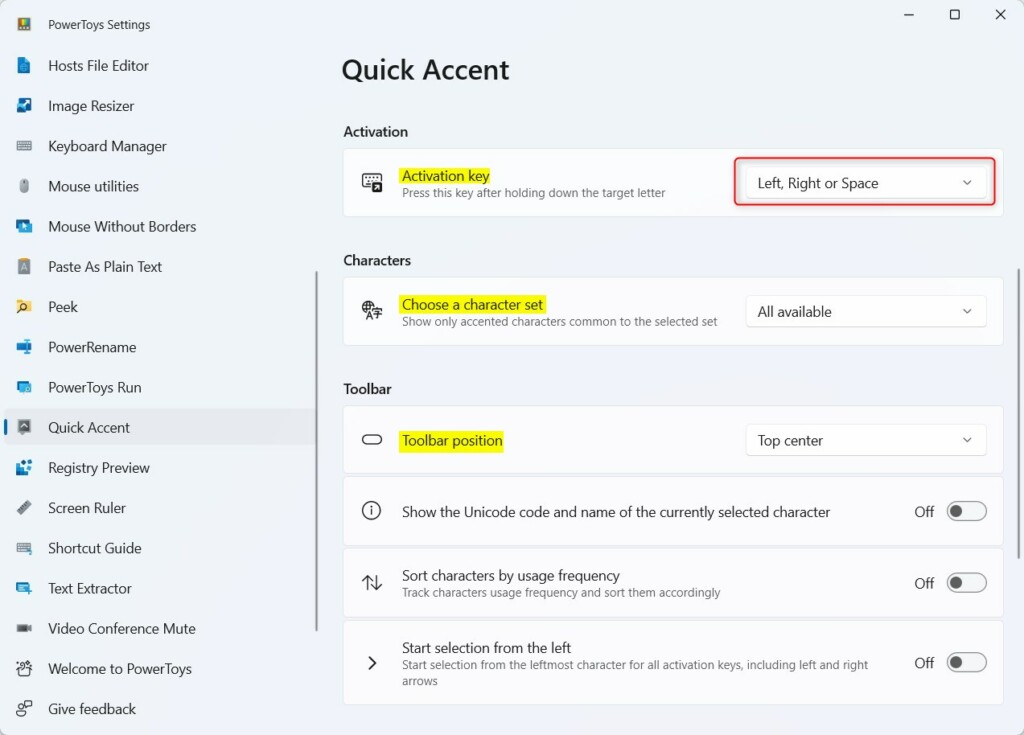
After you turn it on, you can change how it works. You can choose which key activates the menu, where the menu appears on your screen, and how fast it pops up.
How to Use It
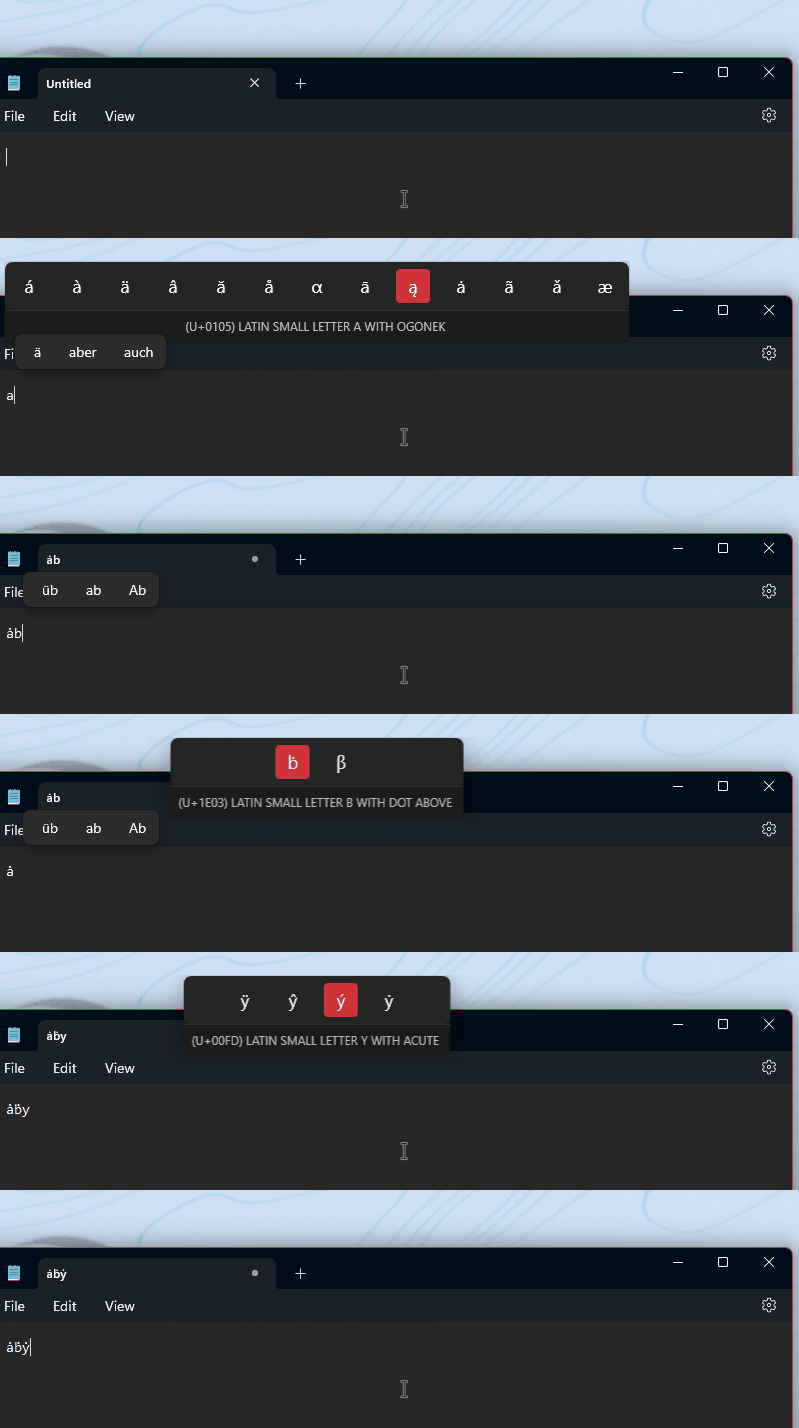
Once the feature is active, using it is simple:
- Hold down the key for the letter you want to type.
- While holding that key, press the Space bar or the Left/Right arrow keys.
- A small bar will appear on your screen showing different versions of that letter.
- Keep holding the key until you select the one you need.
Reference: Microsoft PowerToys
Summary
Quick Accent is a simple tool for anyone who types in multiple languages or needs special characters. By enabling it in the PowerToys settings, you can add accents to letters by holding down a key and selecting the symbol you need from a small menu. It is an easy way to save time and stop searching for special characters manually.
Was this guide helpful?



Leave a Reply Cancel reply